Connection state at a glance
Starting, ready, connected and recovery states each have clear copy and an appropriate next action.
 Browser MCP Companion
Local browser control for macOS
Browser MCP Companion for macOS
Give your MCP client a private local connection to the browser you already use. Clear setup, visible status and simple recovery when something needs attention.
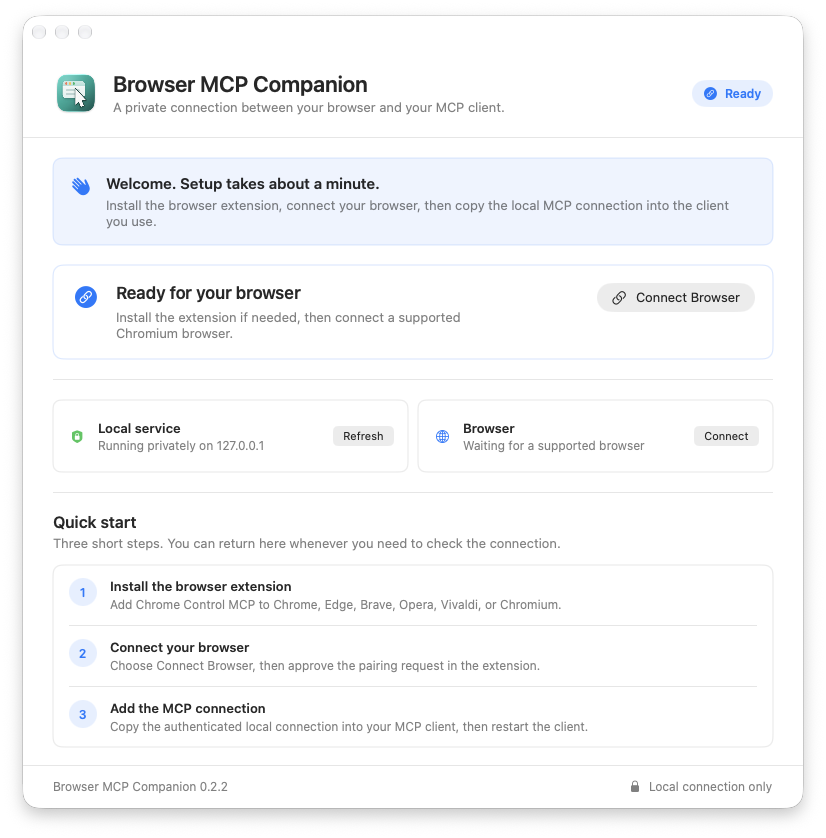
One clear path
The companion stays quietly in the menu bar when you do not need the setup window. You can reopen the guide, reconnect a browser or copy the local MCP connection whenever you need it.
First run
The app never pairs a browser silently. Each connection starts from a direct action and shows an understandable result.
Add Chrome Control MCP to Chrome, Edge, Brave, Opera, Vivaldi or Chromium.
Choose Connect Browser, then approve the pairing request in the extension.
Copy the authenticated local connection into your MCP client, then restart the client.
Made to be understood
Starting, ready, connected and recovery states each have clear copy and an appropriate next action.
The companion opens on the useful setup steps instead of leaving you to find the right menu.
The service uses an authenticated loopback connection and runs inside the macOS App Sandbox.
Privacy
Browser results are returned to the local companion and the MCP client you configure. The companion adds no account and no developer-operated browser-data endpoint.
Your chosen client may send tool results onward under its own policy. Review that client and connect only when you trust it.
Read the privacy policy